guides
Claude Cowork: From Zero to Real Work in One Session
Get Cowork running and actually producing useful work — morning email digests, weekly summaries, automated briefs — in one sitting. Every step includes copy-paste prompts you can run immediately.
Claude Cowork: From Zero to Real Work in One Session
If you want the full deep dive, the Claude Cowork course covers everything across 10 lessons. This guide is for people who want to get real value out of Cowork in one sitting, without reading 10 lessons first.
What you'll have by the end: Claude handling your morning inbox triage, automatically writing your weekly summary, and available from your phone for whatever comes up during the day — without you initiating any of it.
Time required: 60-90 minutes, including setup.
The one thing to understand first
Every AI tool you've used before works like this: you ask, it answers, you go do the thing yourself.
Cowork works differently. Chat describes how to do things. Cowork actually does them.
You describe the outcome. Cowork shows you its plan, waits for your approval, then executes. You come back to finished work.
Before it does anything consequential — move files, send a draft, make changes — it shows you the plan and waits. You can approve, redirect, or stop it at any point. And it cannot delete files without an explicit permission prompt you have to click Allow on. That's a hard system constraint, not a suggestion.
Step 1: Get Cowork running (10 minutes)
What you need:
- A paid Claude plan (Pro, Max, Team, or Enterprise — free tier doesn't include Cowork)
- Claude Desktop app — download at claude.com/download
- macOS or Windows x64 (Windows arm64 is not supported)
Install and open:
- Install Claude Desktop and sign in
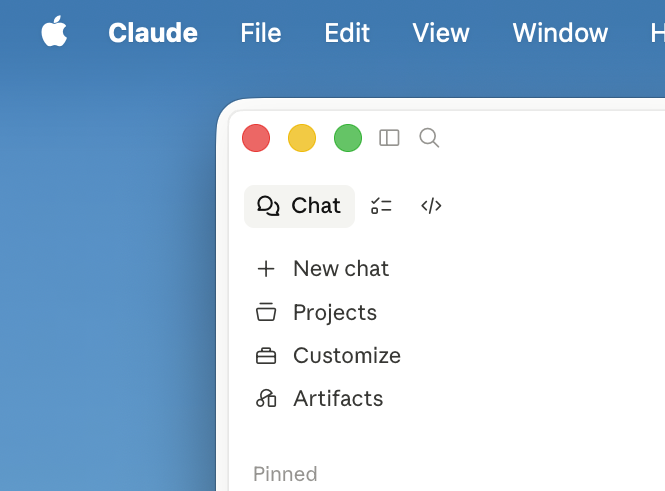
- In the left sidebar, click the Cowork icon
- Click the + button next to the chat input → Add folder
- Create a folder called Claude Workspace on your desktop and select it
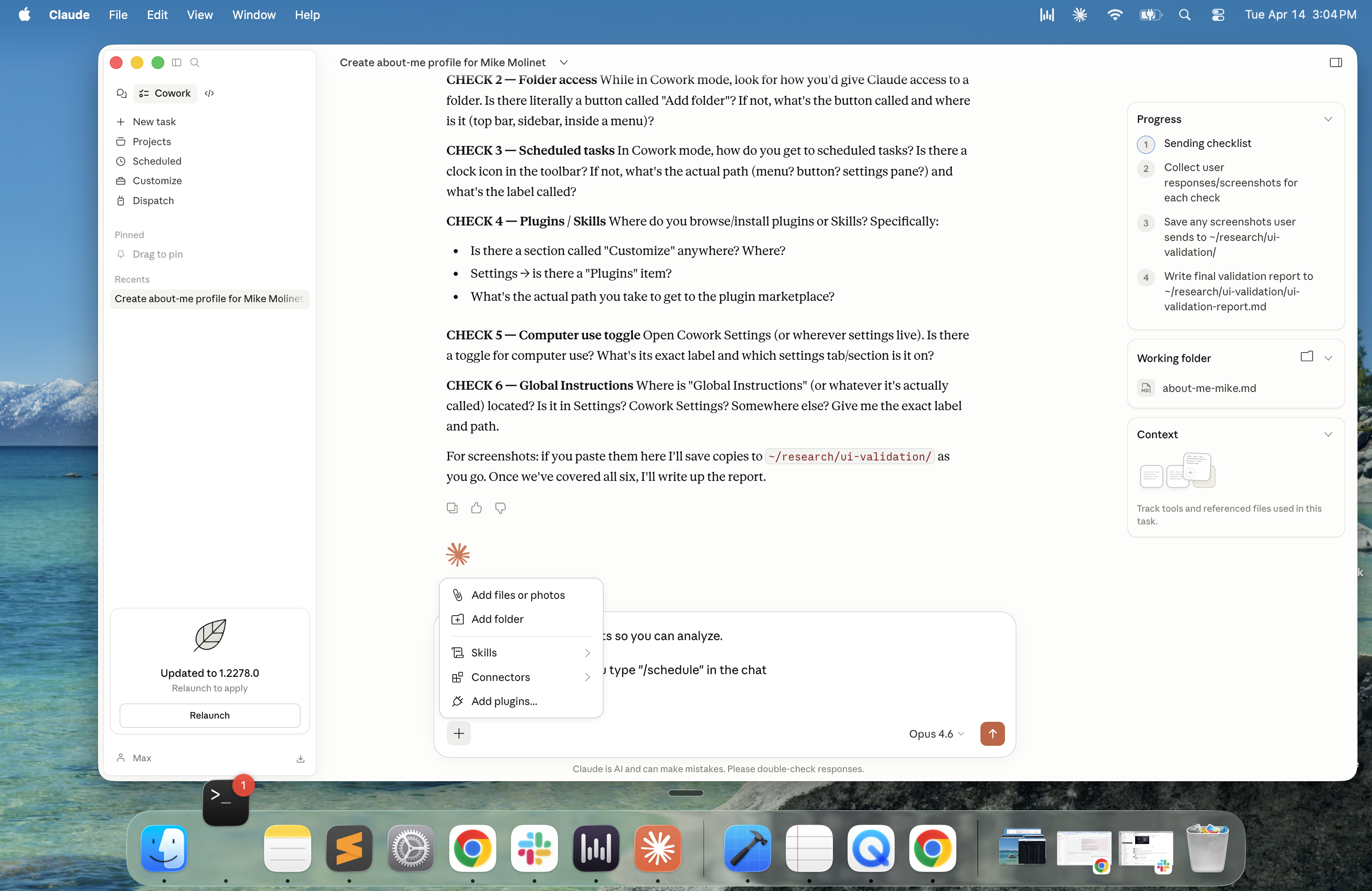
That folder is the only thing Cowork can touch — nothing else on your computer is visible to it.
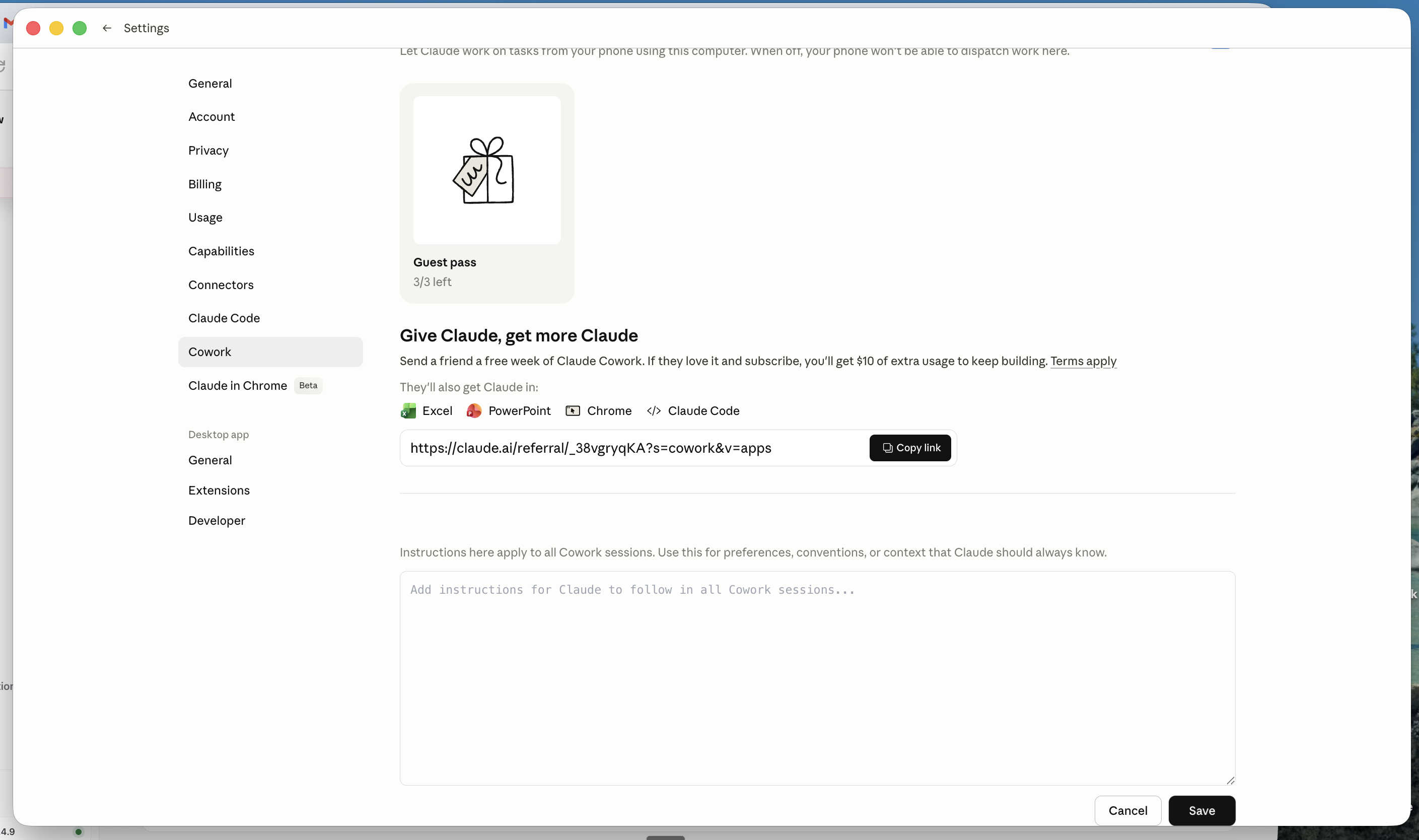
Set up Global Instructions: Go to Settings → Cowork tab → scroll to Global Instructions → click Edit. Paste this:
Before every task, read the files in my ABOUT ME folder.

Always show me your plan before taking any action on files.
Save all deliverables to my OUTPUTS folder unless I say otherwise.
If a task is unclear, ask me one specific question before starting.
Do not delete any files without explicit permission.
Do not send emails or messages without showing me the draft first.
These instructions reference your ABOUT ME folder, which you'll build in Step 2. Until then, Cowork will note it can't find the folder — that's expected, keep going.
Create your folder structure: Inside Claude Workspace, create three folders:
Claude Workspace/
├── ABOUT ME/
├── OUTPUTS/
└── TEMPLATES/
Before you go further — this is where it gets real
Take 60 seconds right now. Copy 3-5 files from wherever you actually work — your Desktop, Downloads, a project folder — and drag them into your Claude Workspace folder. Meeting notes, a project doc, last week's status update, a deck you're working on. Anything real.
Then paste this into Cowork:
Read all the files in my Claude Workspace folder.
For each one give me:
- File name
- What it's about in 2-3 sentences
- The single most important thing I should know from it
- Any action items or open questions it raises

Then give me one paragraph summarizing what's on my plate
based on everything you read.
Cowork reads your actual files, synthesizes across all of them, and produces a brief of what's on your plate — without you summarizing anything yourself.
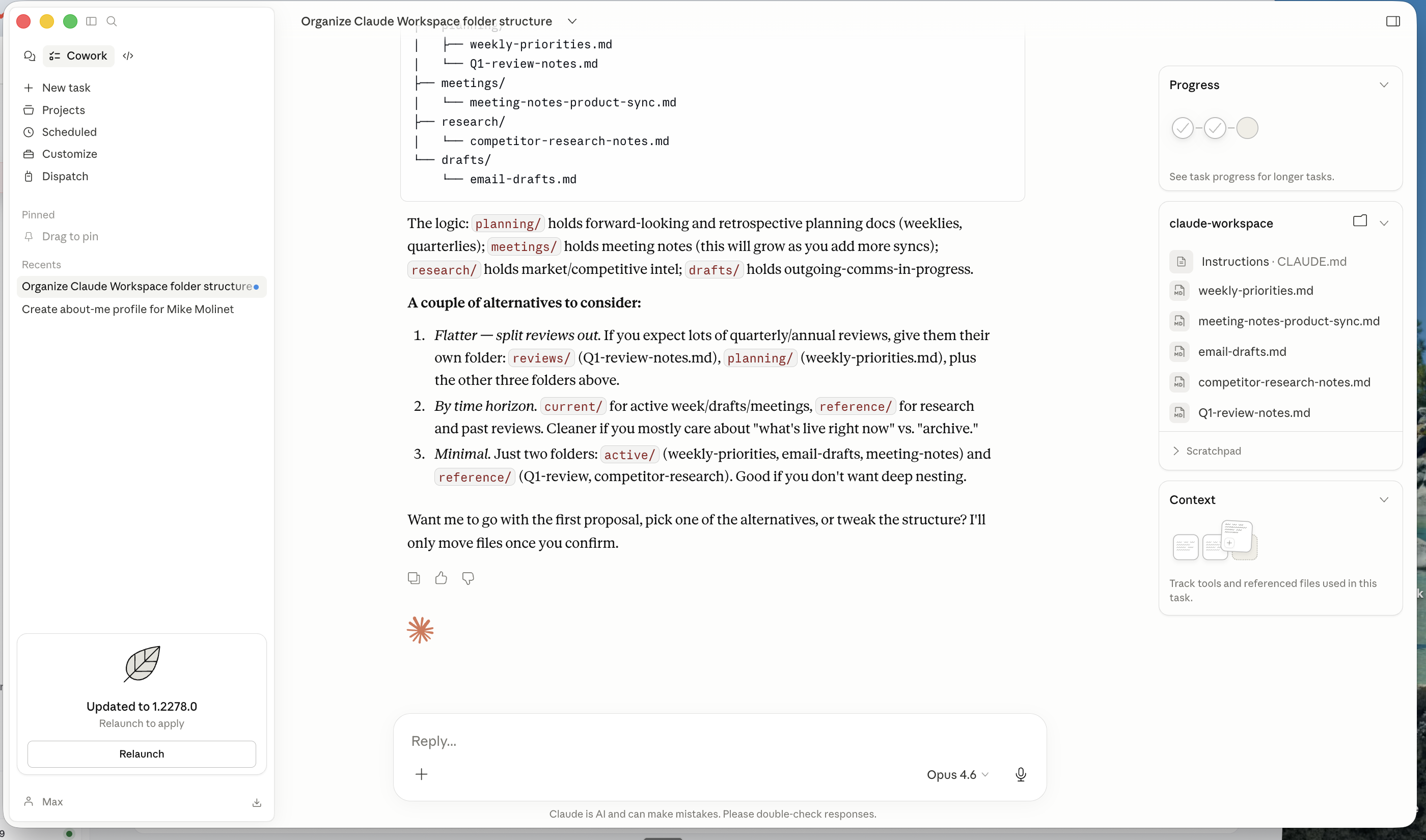
That's the baseline. Everything that follows makes this better: more accurate to your voice, connected to your email and calendar, automated to run without you asking.
Step 2: Make Claude understand you (30 minutes)
This is the most important step in the entire guide. Without context files, Cowork does good work for a generic professional. With them, it does your work, at your standards, in your voice — without you explaining it every time.
You need three files. Start with about-me.md — it's the most personal and sets the tone for how Claude talks to you in everything that follows.
File 1: about-me.md
Paste this into Cowork:
I want to build my about-me.md context file. Interview me
one question at a time. Wait for my answer before asking
the next. If my answer is vague, ask one follow-up.
Ask 15 questions total.

After the interview, compile my answers into about-me.md
with these sections: Who I Am, How I Work Best, My Standards,
What I Care About, What Frustrates Me, Working With Me.

Keep it under 600 words. Use my exact words where possible.
Save it to my ABOUT ME folder when done.

Start with question 1 now.
Answer honestly and specifically. The more concrete your answers, the better every future task will be.
File 2: anti-ai-writing-style.md
This is the file most people skip. Don't skip it — it's the one that makes the biggest difference to output quality.
The key principle: 80% of the file is what you're not.
Constraints are more enforceable than aspirations. "Don't start with 'In today's fast-paced world'" is something Claude can check precisely. "Write with warmth" is not.
Paste this into Cowork and customize it before saving:
Create a file called anti-ai-writing-style.md in my ABOUT ME
folder with this content — I'll customize it after:

# Anti-AI Writing Style

## Never start with
- "In today's fast-paced world..."
- "It's no secret that..."
- "Now more than ever..."
- Any sentence that could apply to any topic by any person

## Words I never use
- Utilize (use "use")
- Leverage (as a metaphor)
- Synergy, robust, seamless, cutting-edge, game-changing
- Dive into, delve into
- Empower, unlock (as a metaphor)

## Structural rules
- No paragraphs longer than 3 sentences
- No bullet points unless content is genuinely a list
- No throat-clearing — don't explain what you're about to say
- No summaries that repeat what was just said
- No hedging: "I think," "perhaps," "it could be argued"

## Tone rules
- Write like a person, not a brand
- Direct over diplomatic
- Confident without being arrogant
- No false enthusiasm

Save the file, then ask me what I want to change.
Edit it to match your actual voice. Add the phrases that make you cringe. The more specific, the better.
File 3: my-company.md
Paste this into Cowork:
Interview me to build my my-company.md context file.
Ask me 8 questions, one at a time:

1. What does your company/team do in one sentence?
2. What are your top 3 priorities this quarter?
3. Who are your main customers or stakeholders?
4. What are the 2-3 things that matter most to them?
5. What's the biggest challenge you're working through?
6. Any terminology, acronyms, or names Claude should know?
7. What does success look like in the next 90 days?
8. Anything else about the company context Claude needs?

Compile into my-company.md, save to my ABOUT ME folder,
keep under 400 words. Start with question 1.
Step 3: Connect your actual work — Gmail and Drive (10 minutes)
So far Cowork can only see files you've manually saved to your Claude Workspace folder. That's useful, but most of your actual work isn't in a local folder — it's in your inbox and in Drive.
Connectors fix that. Once Gmail is connected, you can say "check my inbox for anything from the Meridian account and summarize the last three threads" and Cowork just does it. No copy-pasting, no forwarding emails. It reads your real inbox directly.
Without Gmail connected:
"Draft a follow-up to the email I got from Sarah about the Q2 budget" → Cowork says it can't find the email, asks you to paste it.
With Gmail connected:
"Draft a follow-up to Sarah's Q2 budget email" → Cowork finds the thread, reads the context, drafts the reply.
That's the difference. Not a small one.
Go to claude.com/connectors. Install these two first:
Gmail — click it, follow the OAuth flow, grant access. Cowork can now read your inbox, search threads, and draft replies.
Google Drive — same process. Cowork can pull files from Drive, synthesize across documents, and save outputs back.
After installing, test Gmail immediately:
Check my Gmail inbox for emails received in the last 24 hours.
For each one: sender, subject, time, one-sentence summary.
Then tell me which ones need a response today and which can wait.
If that returns your actual inbox, connectors are working.
Step 4: Automate your most repeated task (20 minutes)
Right now, every time you want Cowork to do a specific recurring task — write a weekly update, draft a client email, summarize a meeting — you either re-explain it from scratch or hope Claude remembers from context files. Skills fix that permanently.
A Skill is a SKILL.md file that teaches Cowork a specific process in enough detail that it executes it reliably, every time, without further instruction. It's not a prompt. It lives permanently in your workspace. When you describe a task that matches the Skill, Cowork applies it automatically.
The difference between context files and Skills: context files tell Claude who you are. Skills tell Claude how you do specific things. Both fire together — your voice file handles tone, your Skill handles process structure. Two layers running simultaneously.
Build your first Skill with Skill Creator:
Pick the task you do most often. Weekly status update. Meeting summary. Email response to clients. Research brief. Whatever you repeat the most — that's your first Skill.
Paste this into Cowork:
I want to build a Skill using the Skill Creator. The Skill
should help me [describe your most common recurring task in
one sentence — be specific about inputs and outputs].
Please start the Skill Creator interview now.
Skill Creator will ask you questions: what triggers it, what inputs it needs, what the output should look like, what format to use. Answer concretely. Vague answers produce unreliable Skills.
The debugging trick — do this immediately after every Skill:
Once the Skill is built, ask Cowork:
"When would you use the [skill-name] Skill?"
Cowork quotes the trigger description back verbatim. If its answer doesn't match what you intended — if it sounds broader or narrower than you wanted — the trigger description needs rewriting before you rely on the Skill.
This is the single most useful non-obvious thing about Skills. Most people skip it and then wonder why their Skill fires on the wrong tasks or never fires at all. Do it every time.
The trigger description is everything:
A good trigger description is specific and includes what the Skill should NOT do. Negative boundaries matter more than positive ones:
Good:
"Use this Skill when asked for a weekly status update or end-of-week summary covering what was accomplished and what's coming next. Do NOT use for daily recaps, meeting notes, or project-specific updates that aren't weekly."
Bad:
"Use this Skill for summaries."
The bad version will fire on everything. The good version fires exactly when you want it and nothing else.
A complete ready-to-use Skill
If you want to skip the Skill Creator interview and build one manually, here's a complete working example for a weekly summary. First create a Skills folder inside your Claude Workspace. Then ask Cowork to create a file called weekly-summary.md inside it, with this content:
---
name: Weekly Summary
description: Use this Skill when the user asks for a weekly
status update, end-of-week summary, or weekly report covering
accomplishments and next steps. Do NOT use for daily recaps,
meeting notes, or project-specific status updates that aren't
specifically weekly.
---

## Process

1. Read all files in the OUTPUTS folder created or modified
   this week
2. Check any meeting notes or task lists in the workspace
3. Identify: what was completed, what is in progress, what
   is blocked, what is coming next week
4. Draft a status update in this structure:
   - This week (3-5 bullet points, specific accomplishments)
   - In progress (what's actively being worked on)
   - Next week (what's coming)
   - Blockers (anything needing attention or a decision)
5. Keep under 300 words
6. Apply anti-ai-writing-style.md rules to all written output
7. Save draft to OUTPUTS/weekly-summary-[date].md
8. Show the draft for review before finalizing
Browse pre-built Skills and plugins:
You don't have to build everything yourself. Click the + button next to the chat input → Add plugins… to open the Directory. It has three tabs: Skills, Connectors, and Plugins. Browse the Skills tab for pre-built automations worth installing.
Run the debugging trick on any pre-built Skill too — the quality varies and you want to know what you're installing before you rely on it.
Step 5: The first thing that runs without you (15 minutes)
This is where Cowork stops being a tool you use and starts being a system that works for you. Scheduled tasks run automatically on a cadence you define. No initiation required. You come back to finished work already in your OUTPUTS folder.
Any task you do on the same schedule every week is a candidate. Morning email triage. Friday weekly summary. Monday competitive brief. Weekly report for your manager. Set it once, never think about it again.
How to create a scheduled task:
Type /schedule in the Cowork chat input. You'll see a tooltip: "Create a scheduled task that can be run on demand or automatically at an interval." Follow the prompts to set the task description and cadence.
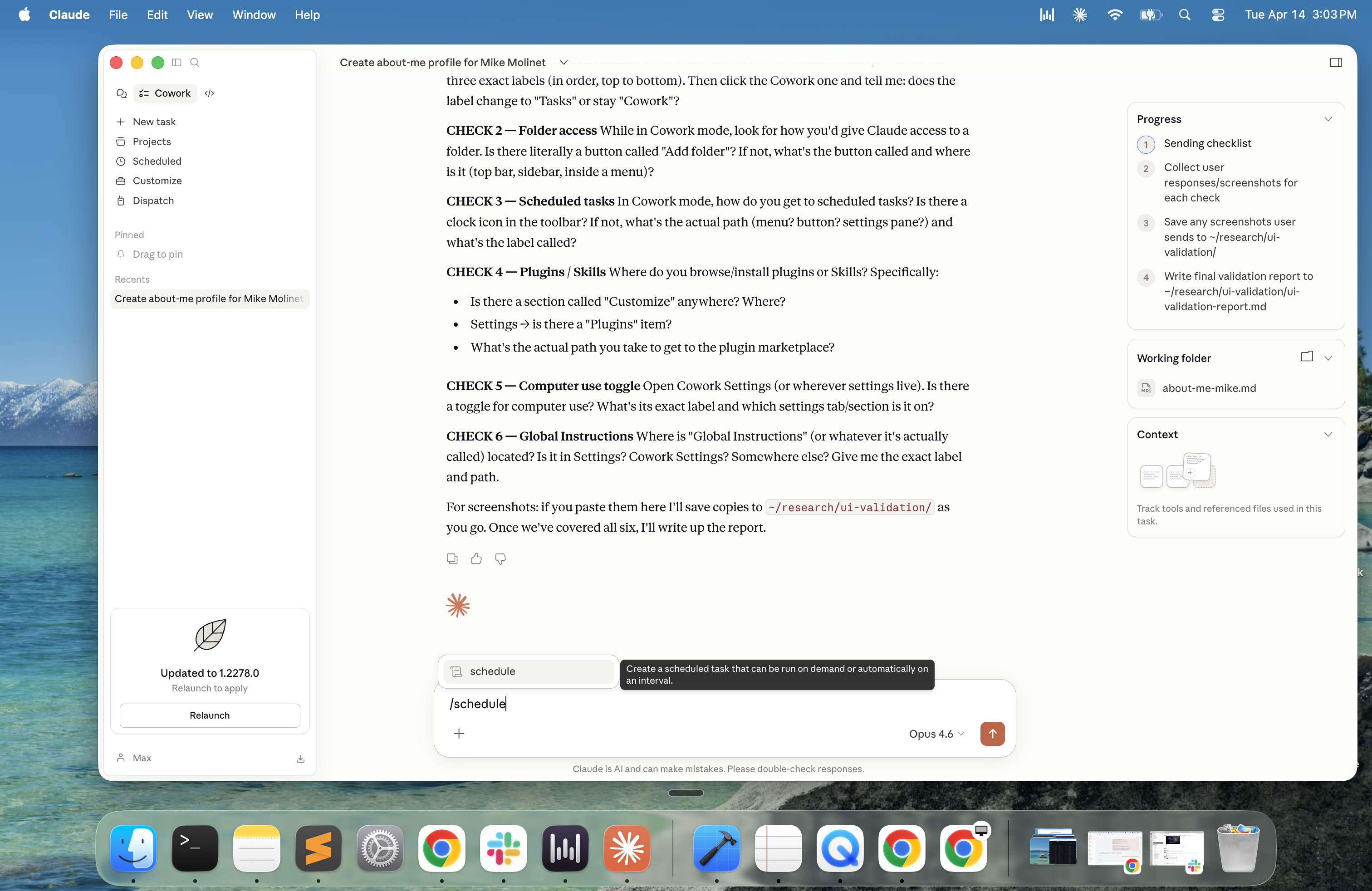
To view and manage existing scheduled tasks, click Scheduled in the Cowork left sidebar.
Three scheduled tasks worth setting up right now:
Copy each prompt directly into the task description field.
Task 1: Morning email digest Cadence: Every weekday
Check my Gmail inbox for all emails received since yesterday
at 6pm. For each email: sender, subject, time received, and
a one-sentence summary of what it's about.

Then give me a prioritized list:
- Needs a response today (with why)
- Can wait until later this week
- Informational only, no action needed

Flag anything with a deadline or time-sensitive ask.
Save to my OUTPUTS folder as "morning-digest-[today's date].md"
This replaces the 15 minutes most people spend scrolling their inbox trying to figure out what needs attention. You open your computer to a prioritized brief instead of a firehose.
Task 2: Weekly summary report Cadence: Every Friday
Review the files in my OUTPUTS folder that were created or
modified this week. Read my weekly-priorities file if it exists
in my Claude Workspace.

Create a one-page summary of the week:
- What was completed (specific, not vague)
- What's still in progress and where each thing stands
- What carried over unfinished and why
- Any open decisions or blockers that need attention

Keep it honest — if something didn't happen, say so.
Save to OUTPUTS as "weekly-summary-[date].md"
This takes something most people spend 30-45 minutes on every Friday and does it automatically, pulling from everything Cowork has worked on that week.
Task 3: Monday competitive or industry brief Cadence: Every Monday
Search the web for news about [your industry or a specific
competitor] from the past 7 days. Find 3-5 significant
developments worth knowing about.

For each: what happened, why it matters to me specifically,
and whether it requires any action or change in approach
on my end.

Keep it under one page. No filler. If nothing significant
happened, say so.
Save to OUTPUTS as "monday-brief-[date].md"
Replace [your industry or a specific competitor] with something concrete — "AI developer tools" or "Salesforce" or whatever you actually track.
The sleep problem — and the fix:
Scheduled tasks require your computer to be awake and Claude Desktop to be open. If the machine sleeps before a task runs, that run is skipped — it waits for the next scheduled time.
Fix this once: go to Settings → Desktop app → General and toggle on Keep computer awake. Description: "Prevent your computer from idle-sleeping while Claude is open so scheduled tasks can run."
One caveat: closing your laptop lid still puts it to sleep even with this on. For overnight or away-from-desk tasks, leave the lid open and the machine plugged in.
A note on output quality:
Your context files and Skills apply to scheduled tasks exactly the same way they apply to tasks you run manually. The morning digest will use your about-me.md and your anti-ai-writing-style.md automatically. This is why Step 2 matters — every scheduled task you set up benefits from the context files you already built.
Step 6: Use Cowork from anywhere (15 minutes)
Dispatch is the shift from synchronous to asynchronous. Right now, using Cowork means sitting at your computer and watching it work. Dispatch changes that. You assign a task from your phone, put it down, and come back to finished work whenever you're ready.
It's not a separate product. It's a persistent conversation thread that links your phone to your desktop Cowork session. Your phone sends the instructions. Your desktop does the work. One continuous conversation across both devices.
The difference from just using Claude on your phone: when you open Claude on your phone normally, you're in Chat mode — a separate conversation with no access to your files, connectors, or Skills. Dispatch connects your phone to the same Cowork session that has all of that. The same Claude that knows your about-me.md, has Gmail connected, and has your Skills loaded.
Enable and set up:
First confirm Dispatch is on: Settings → Cowork tab → Dispatch (Beta) toggle should be enabled. Description: "Let Claude work on tasks from your phone using this computer."
Then:
- Click Dispatch in the Cowork left sidebar
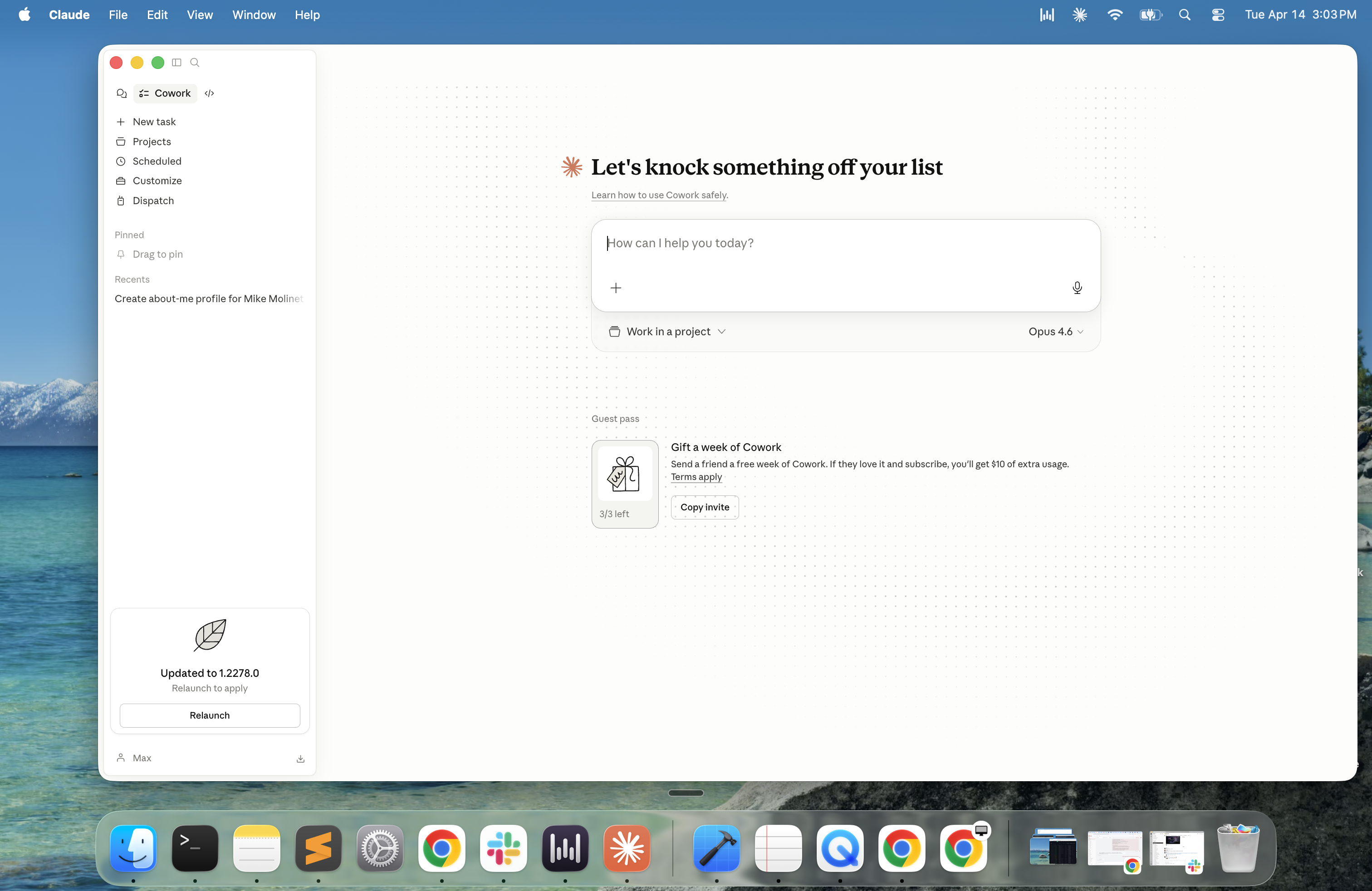
- Click Get started
- Toggle on Give Claude access to your files and Keep your computer awake — both matter
- Scan the QR code with your Claude mobile app
Two minutes. That's the full setup.
Tasks that work well from your phone:
Not everything is worth dispatching remotely. The best Dispatch tasks are ones where you have context on the go that you want acted on before you return to your desk. Here are prompts you can send from your phone right now:
On your commute in the morning:
Check my Gmail for anything urgent that came in since
yesterday at 6pm. Flag anything that needs same-day
response and tell me what it's about.
After a meeting, before you forget:
I just had a meeting with [name] about [topic]. Here are
my notes: [paste or dictate your notes]. Draft a follow-up
email summarizing what we discussed, what was decided, and
next steps. Save the draft to OUTPUTS and show me a preview.
End of day from your couch:
Look at the files in my OUTPUTS folder from this week.
Tell me what's been completed and what's still open.
I want to review before tomorrow morning.
Before a presentation or call:
Pull together a one-page brief on [company/person/topic]
from whatever you can find in my files and on the web.
I need it in 20 minutes.
When you think of something at night:
Add this to my running task list in Claude Workspace:
[whatever just occurred to you]. Flag it as high priority.
The memory advantage:
Dispatch has a persistent thread — unlike standalone Cowork sessions, it builds memory across sessions. Claude learns your patterns, your preferences, and your ongoing work over time. If you want Cowork to genuinely feel like it knows you, using Dispatch consistently is how that compounds.
The constraint to know:
Your desktop must be awake with Claude Desktop open. Dispatch is a remote control, not a cloud service. If your machine sleeps, Dispatch stops. The keep-awake toggle in Settings handles idle sleep — but closing the lid will still cut the connection.
For truly fire-and-forget tasks where you need the computer to be asleep, use scheduled tasks instead (Step 5).
Dispatch is available on Pro and Max plans. As of April 2026 it's in research preview — the core functionality is solid, expect ongoing improvements.
Put it all together — four tasks that use everything you built
You've set up six layers. These tasks exercise all of them. Run at least one right now.
Task 1: The full morning brief Uses: Gmail connector + context files
Check my Gmail inbox for emails received since yesterday at 6pm.
Cross-reference anything urgent against my priorities in
my-company.md in my ABOUT ME folder.

Give me:
- A prioritized inbox summary (needs response today / can wait /
  informational)
- Any email that connects to something I said was a priority
  this quarter
- One suggested first action for my morning

Save to OUTPUTS as "morning-brief-[today's date].md"
This is what the morning digest scheduled task produces every day automatically. Run it manually now to see what you'll wake up to.
Task 2: Trigger your Skill manually Uses: the Skill you built in Step 4
Whatever Skill you built — run it now. Just describe the task it's designed for in plain language. Don't name the Skill explicitly — if the trigger description is right, Cowork will apply it automatically based on what you're asking for.
Watch whether it fires correctly and whether the output matches what you expected. If not, run the debugging check:
"When would you use the [skill-name] Skill?"
Fix the trigger description if needed. A Skill that fires wrong in testing will fire wrong when it counts.
Task 3: Send a task from your phone Uses: Dispatch
Open Claude on your phone. In the Dispatch thread, send this:
Pull the most recent file from my OUTPUTS folder and give
me a two-sentence summary of what's in it. Then tell me
if there's anything I should follow up on today.
Put your phone down. Come back in two minutes. Your desktop will have processed it and the response will be waiting on both devices. That's the shift — from synchronous to asynchronous.
Task 4: Build something from scratch using everything Uses: Gmail + Drive + context files + Skills
I need to prepare for a meeting tomorrow. Here's what I need:

1. Search my Gmail for any emails related to [meeting topic
   or person's name] from the last two weeks. Summarize the
   key context.

2. Check my Google Drive for any relevant documents — decks,
   notes, previous meeting summaries. Pull the most relevant one.

3. Using everything you found, draft a one-page meeting prep
   brief covering: context, what was last discussed, what I
   need to decide or communicate, and two or three smart
   questions to ask.

Save to OUTPUTS as "meeting-prep-[topic]-[date].md"
This is the kind of task that used to take 30-45 minutes of digging through your inbox and Drive. With everything connected, Cowork does it in under five minutes.
What you've built
| Layer | What it does |
|---|---|
| Context files | Claude knows who you are before you say a word |
| Global Instructions | Standing rules that apply to every task |
| Connectors | Live access to Gmail, Drive, and more |
| Skills | Your repeatable processes, automated |
| Scheduled tasks | Work that runs without you |
| Dispatch | Assign tasks from anywhere |
Once your voice, standards, and processes are encoded, Claude executes them. You focus on the judgment calls. Claude handles the assembly.
What Cowork can't do
Be clear-eyed about current limitations:
- Not certified for HIPAA, FedRAMP, or regulated financial workloads — explicitly documented by Anthropic
- No audit logs for Cowork activity — conversation history is stored locally, not centrally
- Windows arm64 not supported
- Dispatch and computer use are still in research preview as of April 2026
- The app must stay open — no cloud fallback
Go deeper
This guide covers the essentials. The full course goes deeper on every topic — including computer use, advanced Skills chaining, Cowork Projects, and building a complete automated workweek.
Take the full 10-lesson course →
Last updated April 2026. Cowork is evolving fast — check Anthropic's release notes for the latest changes.
Get notified when we publish new guides. No spam, just useful stuff.