Claude Cowork · Week 2 · Lesson 9
Computer Use — When Claude Controls the Screen
Most Cowork tasks go through connectors or local files. But sometimes you need Claude to interact with a tool that doesn't have a connector — an internal dashboard, a web app, a legacy system. That's where computer use comes in.
With computer use enabled, Claude can move your mouse, click buttons, type text, and navigate your screen — the same way a person sitting at your computer would.
This is a powerful capability. It's also one that deserves a clear understanding of how it works before you turn it on.
The priority ladder — how Cowork decides what to use
Before we talk about computer use, it's important to understand where it sits in Cowork's decision-making:
- Connector first — if a connector exists for the service, Cowork uses it. This is the most reliable and precise path.
- Browser second — if there's no connector, Cowork uses Claude for Chrome to navigate the web interface.
- Computer use last — if neither of the above works, Cowork takes direct control of your screen.
Computer use is the fallback of last resort, not the default approach. Cowork tries everything else first.
The critical safety distinction almost nobody knows
Here's something important that's buried in Anthropic's documentation and missed by almost every tutorial:
Cowork file tasks run inside an isolated virtual machine. That VM is sandboxed — it's a contained environment separate from your main desktop.
Computer use runs on your actual desktop. Not the VM. Your real screen, your real mouse, your real apps.
These are two different environments with different risk profiles. When Cowork is organizing files or processing documents, it's working in the sandboxed VM. When computer use is active, it's operating in the same environment you're working in.
This distinction matters for two reasons: first, so you understand what's happening when Claude is clicking around your screen; second, so you're thoughtful about what's visible on your desktop when computer use is running.
Claude sees your screen
When computer use is active, Claude takes screenshots of your desktop to understand what's on screen and navigate accordingly. This is how it knows where to click.
The implication: if your screen shows passwords, financial data, sensitive documents, or anything you wouldn't want processed by an AI, computer use will see it.
Best practice: before running a computer use task, close or minimize anything sensitive. Work in a clean environment.
How to enable computer use
Computer use is off by default. To enable it:
- Open Settings in Claude Desktop
- In the left sidebar, scroll to the Desktop app section
- Click General
- Scroll to the Computer use section and toggle it on (it has a "Beta" badge)
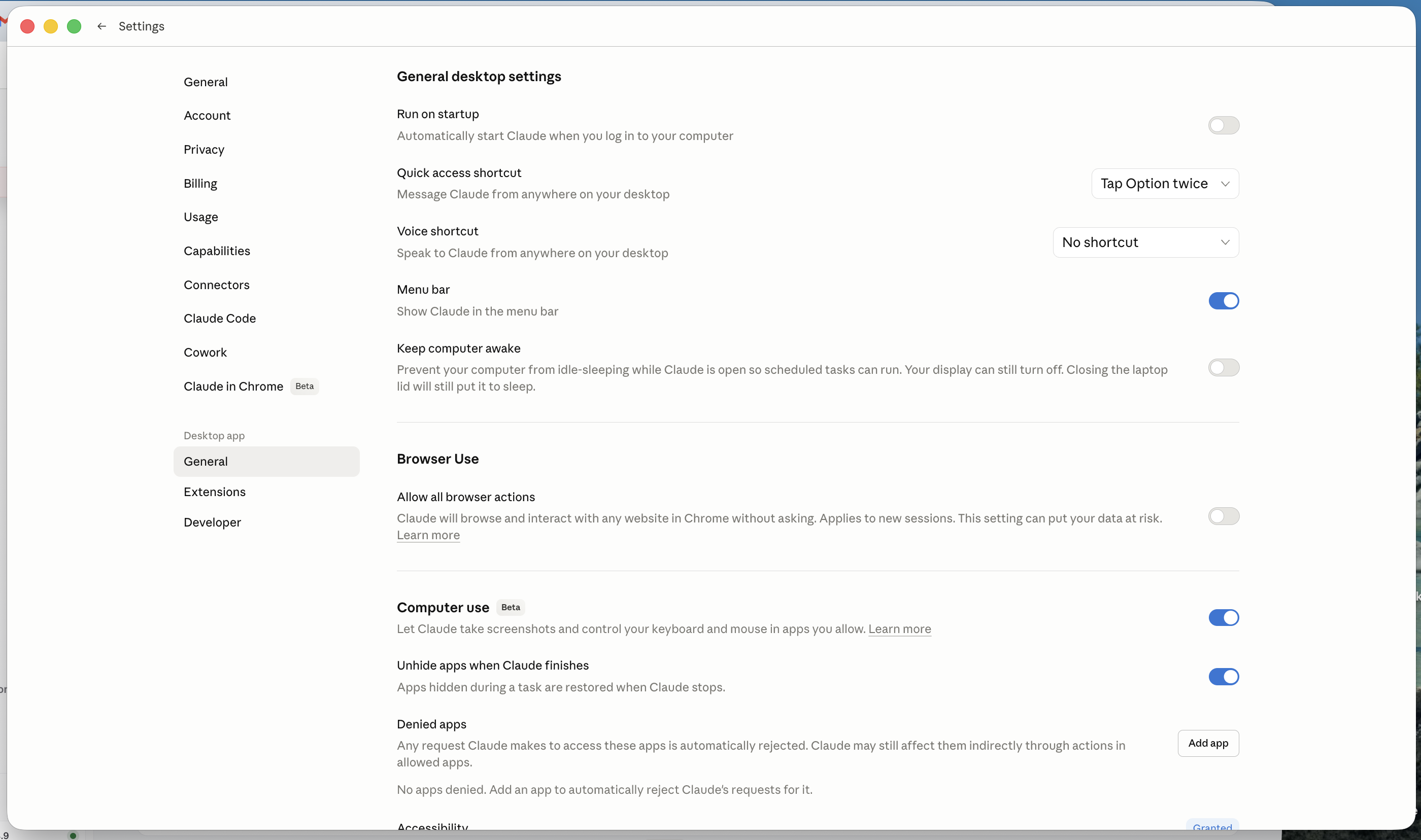
The toggle description reads: "Let Claude take screenshots and control your keyboard and mouse in apps you allow."
You'll need a Pro or Max plan. Computer use is currently in research preview for those plans as of April 2026. Team and Enterprise availability is unconfirmed.
Note: the computer use toggle is under Desktop app → General in Settings — not under the Cowork tab.
What computer use can do
In principle, computer use can interact with any application on your computer. In practice, it works best with:
- Web browsers (navigating sites that don't have connectors)
- Standard desktop applications (spreadsheets, document editors)
- Internal tools and dashboards accessible via browser
- Form-filling and data entry workflows
Specifically mentioned in Anthropic's documentation: browser, files/Finder, IDE, spreadsheets, presentation software, PDF tools.
Claude will always request your permission before accessing a new application.
What computer use doesn't do well
Computer use is explicitly described by Anthropic as "still early compared to Claude's ability to code or interact with text." Current limitations to be aware of:
- Tasks requiring split-second precision or fast reaction times
- Anything where the exact pixel location matters greatly
- Complex multi-app workflows can have unexpected cross-app side effects — clicking a link in one app may open it in another app you didn't intend
- "Complex tasks sometimes need a second try"
Treat computer use as a capable but imperfect feature. Review what it did after complex tasks.
When to use it vs. when to wait for a connector
A useful decision rule:
Use computer use when you need to automate something in a tool that has no connector and the task is relatively straightforward — navigating to a page, extracting visible data, filling out a standard form.
Wait for a connector when the task involves sensitive data, requires high reliability, or the same tool is likely to get a connector soon (check claude.com/connectors regularly — the directory grows fast).
Don't use computer use for tasks involving financial accounts, password managers, or anything where an error has serious consequences. The feature is powerful but not perfect.
Prompt injection: a word of caution
Anthropic documents prompt injection as a real risk with computer use. This means: if Claude is browsing a website or reading content on screen while computer use is active, malicious content on that page could theoretically attempt to hijack Claude's actions.
Anthropic has built prompt injection detection into the system, but they describe the risk as "non-zero." For high-stakes tasks, stay in the loop and watch what Claude is doing rather than stepping away.
Next: Lesson 10 brings everything together — your full Cowork system, a suggested build order, and what comes after this course.