Claude Cowork · Week 2 · Lesson 7
Scheduled Tasks — Work That Happens Without You
Everything we've covered so far requires you to initiate the task. You open Cowork, you describe what you want, it runs.
Scheduled tasks flip that. You define a task once, set a cadence, and Cowork runs it automatically. No initiation required. You come back to finished work in your OUTPUTS folder.
For any task you do on the same schedule every week — a morning email digest, a Friday summary, a Monday competitive brief — this is the unlock.
How to create a scheduled task
Type /schedule into the Cowork chat input. This triggers the scheduled task creator — you'll see a tooltip: "Create a scheduled task that can be run on demand or automatically at an interval."
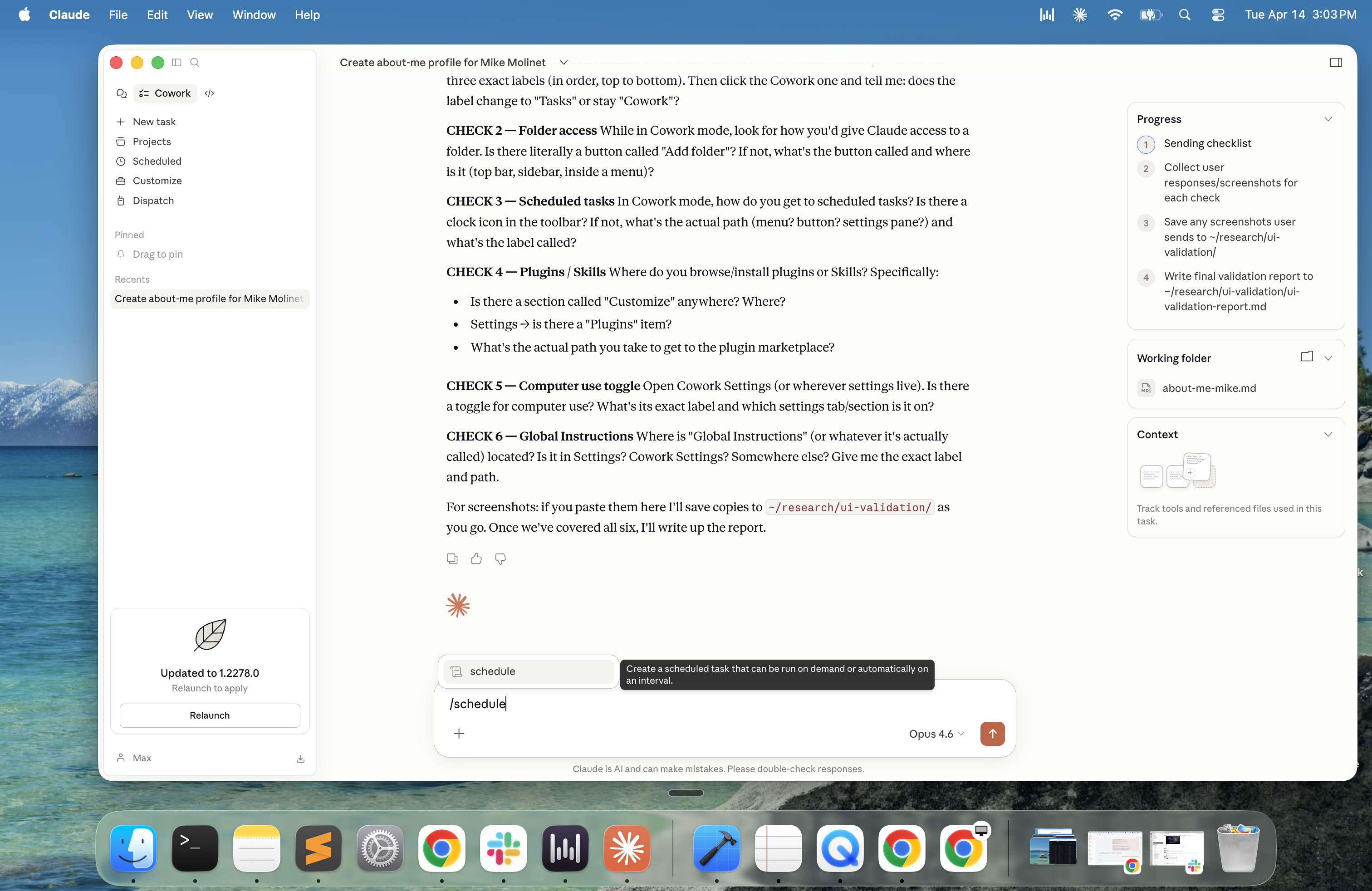
From there you'll define two things:
The task description — what you want Cowork to do. Write this the same way you'd write any Cowork task: describe the outcome, not the steps.
The cadence — how often to run it. Current options include daily, weekdays only, weekly on a specific day, and custom intervals. Note: precise time-of-day scheduling has limited documentation as of April 2026 — Anthropic is actively improving this.
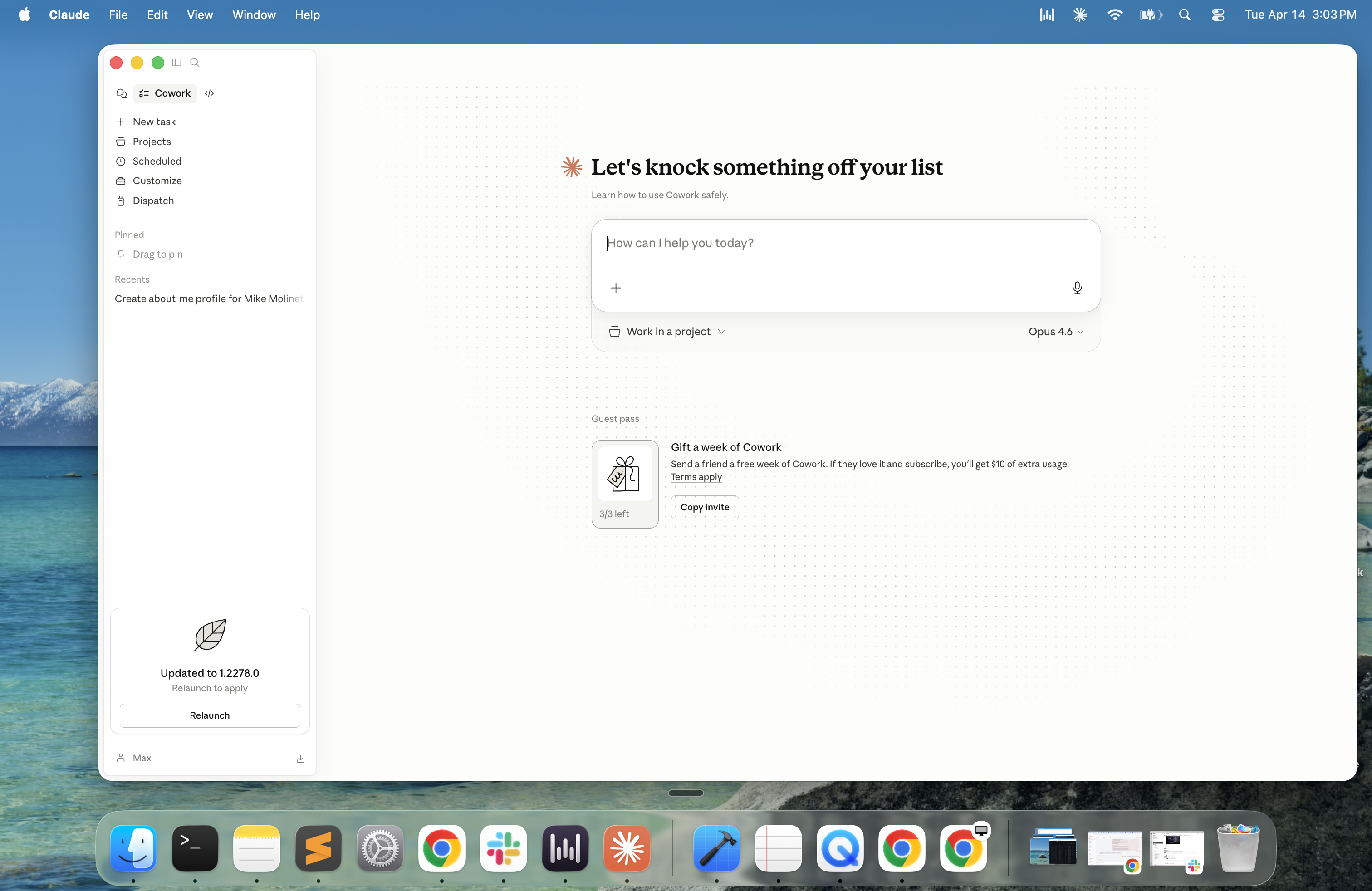
To view and manage your existing scheduled tasks, click Scheduled in the Cowork left sidebar.
Three scheduled tasks worth setting up today
Each prompt below is ready to paste directly into the task description field.
Task 1: Morning email digest (runs every weekday)
Check my Gmail inbox for all emails received since yesterday
at 6pm. For each email, give me: sender, subject, time received,
and a one-sentence summary.

Then give me a prioritized list: which emails need a response
today, which can wait, and which are informational only.

Save the digest to my OUTPUTS folder as
"morning-digest-[today's date].md"
Task 2: Weekly summary report (runs every Friday)
Review the files in my OUTPUTS folder that were created or
modified this week. Read my weekly-priorities file if it exists.

Create a one-page summary of the week:
- What was completed
- What's still in progress
- What carried over unfinished
- Any open decisions or blockers

Save it to OUTPUTS as "weekly-summary-[date].md"
Task 3: Monday competitive brief (runs every Monday)
Search the web for news about [your competitor or industry]
from the past 7 days. Find 3-5 significant developments.

For each one: what happened, why it matters, and whether it
requires any action or attention on our end.

Save to OUTPUTS as "competitive-brief-[date].md"
Replace [your competitor or industry] with something specific before saving this task.
The sleep problem — and how to work around it
Scheduled tasks require two things to run: your computer must be awake, and Claude Desktop must be open.
If your computer goes to sleep before a scheduled task is due, that run will be skipped. It won't retroactively catch up — it waits for the next scheduled time.
The best fix: enable the Keep computer awake toggle in Settings. Go to Settings → Desktop app → General and toggle on Keep computer awake. The description reads: "Prevent your computer from idle-sleeping while Claude is open so scheduled tasks can run. Your display can still turn off. Closing the laptop lid will still put it to sleep."
One important note: closing your laptop lid will still stop scheduled tasks even with this toggle on. For overnight or while-away tasks, leave the lid open and the machine plugged in.
For tasks you need to run while away from your desk entirely, Dispatch (next lesson) solves this differently.
What to expect from scheduled task output
Scheduled tasks save their output to whatever location you specify in the task description. If you don't specify a location, Cowork will save to your default OUTPUTS folder and notify you in the Cowork interface.
The quality of scheduled task output is consistent with manual task output — your context files and Skills apply to scheduled tasks the same way they apply to tasks you run manually. This is why getting Lesson 4 right matters so much: the infrastructure you built there powers everything that runs automatically.
Current limitations worth knowing
Scheduled tasks are a newer feature and still maturing:
- Time-of-day precision is limited — exact scheduling to a specific hour is not fully documented as of April 2026
- Event-based triggers (run when X happens, not at Y time) are not yet supported — all scheduling is time-based
- There's no documented limit on how many scheduled tasks you can create, but performance may vary with many running simultaneously
Check Anthropic's release notes for updates as these capabilities improve.
Next: Dispatch. How to assign tasks to Cowork from your phone and come back to finished work — even when you're not at your desk.