Claude Cowork · Week 2 · Lesson 6
Skills — Automate What You Do Every Day
You have tasks you do the same way every week. A status update that always follows the same structure. A meeting summary that always covers the same ground. A research brief that always hits the same sections.
Right now, you re-explain that process to Claude every time. Skills let you teach it once and never explain it again.
What a Skill actually is
A Skill is a SKILL.md file — a plain markdown document that describes a specific process in enough detail that Cowork can execute it reliably, every time, without further instruction.
It's not a prompt you paste in. It lives in your Skills folder permanently. When you give Cowork a task that matches what the Skill covers, Cowork applies it automatically.
The difference between a Skill and a context file:
- Context files describe who you are and how you work (about-me.md, anti-ai-writing-style.md)
- Skills describe how you do specific things (weekly-summary.md, email-draft.md)
Both run together. A Skill handles the process structure. Your context files handle the voice and standards. They fire simultaneously as two layers.
Building your first Skill with Skill Creator
The fastest way to build a Skill is to use Cowork's built-in Skill Creator. It interviews you about the task you want to automate and generates the SKILL.md file for you.
Paste this into Cowork:
I want to build a Skill that automates my weekly status update.
Every Friday I write a summary of what I worked on, what's in
progress, and what's coming next week.

Please use the Skill Creator to interview me and build this
Skill. Walk me through the process step by step.
Skill Creator will ask you questions about the task: what triggers it, what inputs it needs, what the output should look like, what format to use. Answer concretely. The more specific your answers, the more reliable the Skill.
The most important part: the trigger description
When Skill Creator builds your SKILL.md file, the most critical element is the trigger description — the text that tells Cowork when to use this Skill.
If the trigger description is too broad, the Skill will fire on tasks it shouldn't. If it's too narrow, it won't fire when you need it.
Good trigger description:
"Use this Skill when the user asks for a weekly status update, weekly summary, or end-of-week report covering what was accomplished and what's coming next. Do NOT use this Skill for daily summaries, meeting recaps, or project status updates that aren't specifically weekly."
Bad trigger description:
"Use this Skill for summaries."
Notice the negative boundaries in the good example. That's intentional — the don'ts are as important as the dos.
The debugging trick that saves hours
Here's the most useful non-obvious thing about Skills:
After you install a Skill, ask Cowork this exact question:
"When would you use the [skill-name] Skill?"
Cowork will quote the trigger description back to you verbatim. If its answer doesn't match what you intended — if it describes the Skill more broadly or narrowly than you want — the trigger description needs rewriting.
This trick tells you exactly what Cowork thinks the Skill is for. If it's wrong, you catch it now instead of wondering why the Skill keeps firing on the wrong tasks or never fires at all.
Run this check on every Skill you install, every time.
Installing pre-built Skills from the Directory
You don't have to build every Skill from scratch. Anthropic and third-party developers have published Skills and plugin bundles you can install directly.
Find the Directory by clicking the + button next to the chat input and selecting Add plugins… — this opens a unified panel with three tabs: Skills, Connectors, and Plugins. You can also reach it via the Customize item in the Cowork left sidebar.
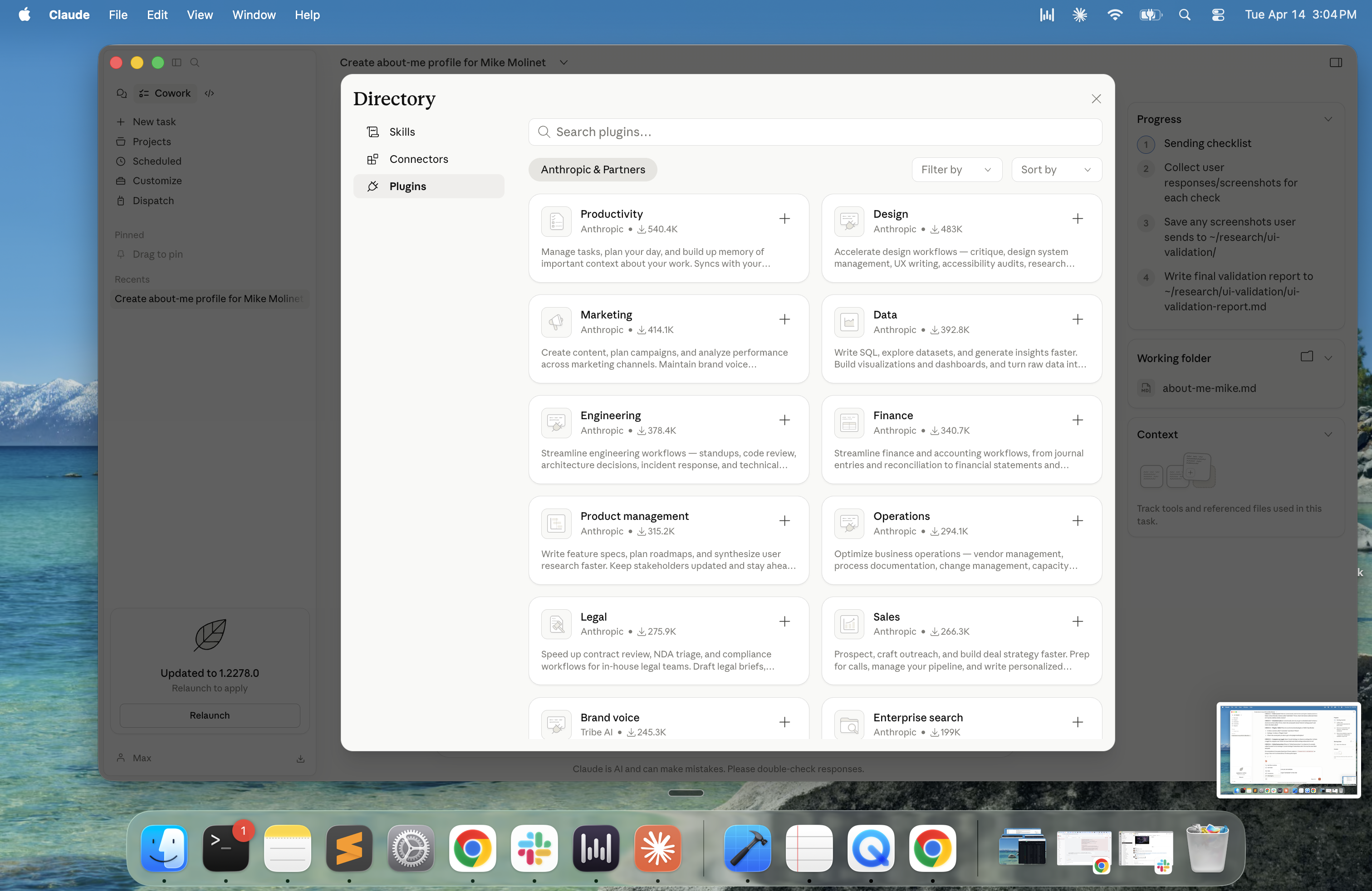
Browse by tab. When you find something relevant, read the description carefully before installing. Check:
- What does it do specifically?
- What does it have access to?
- Who built it? (Anthropic-published plugins are verified; community plugins should be reviewed before installing)
Install one or two that match tasks you do regularly. Test them with the debugging trick before relying on them.
What Skills can and can't do
Skills give you consistent, reliable starting points. They don't guarantee perfect output — they guarantee a consistent process. Expect 80% results out of the box. You still review and refine.
A few things Skills can't do:
- They can't override your Global Instructions or context files (those always apply)
- They don't automatically update when your process changes — you need to revise the SKILL.md file when your workflow evolves
- A poorly written trigger description will cause the Skill to misbehave — this is the most common issue and the debugging trick is the fix
One complete example: the Weekly Summary Skill
Here's what a finished SKILL.md might look like for a weekly summary workflow. You can use this as a starting point and adapt it:
---
name: Weekly Summary
description: Use this Skill when the user asks for a weekly
status update, end-of-week summary, or weekly report covering
accomplishments and next steps. Do NOT use for daily recaps,
meeting notes, or project-specific status updates.
---

## Process

1. Read all files in the OUTPUTS folder that were created or
   modified this week
2. Check any meeting notes or task lists in the workspace
3. Identify: what was completed, what is in progress, what
   is blocked, what is coming next week
4. Draft a status update in this structure:
   - This week (3-5 bullet points, specific accomplishments)
   - In progress (what's actively being worked on)
   - Next week (what's coming)
   - Blockers (anything that needs attention or a decision)
5. Keep it under 300 words
6. Apply anti-ai-writing-style.md rules to all written output
7. Save draft to OUTPUTS/weekly-summary-[date].md
8. Show the draft for review before finalizing
Want to go deeper on Skills?
This lesson covers what you need to get started. Skills have more depth than we can cover here — chaining Skills together, building Skills from past conversations, advanced trigger mechanics. We have a dedicated guide on that:
→ Claude Skills: The Complete Guide (coming soon)
For now, build one Skill for your most common task and get it working reliably before adding more.
Next lesson: Scheduled Tasks. How to set up work that runs automatically — without you initiating it.