Claude Cowork · Week 1 · Lesson 2
Setup in 15 Minutes
Cowork lives inside the Claude Desktop app. If you're currently using Claude in a browser tab, that's Chat mode — powerful, but not Cowork. To get Cowork, you need the desktop app installed on your computer.
Here's everything you need and exactly how to get started.
What you need before you begin
A paid Claude plan. Cowork is not available on the free tier. Any paid plan works — Pro ($20/month), Max ($100-200/month), Team, or Enterprise. If you're not sure which plan is right, Pro is enough to start. You can upgrade later if you hit usage limits.
The Claude Desktop app. Download it at claude.com/download. Available for macOS and Windows. One important note: Windows arm64 is not supported. If you have a newer Windows laptop with a Qualcomm chip (common in the latest Lenovo, Samsung, and Microsoft Surface devices), check your system specs before downloading.
A dedicated folder on your computer. Before you grant Cowork access to anything, create a folder specifically for Claude. Call it "Claude Workspace" or anything you like. This is the folder you'll give Cowork access to — not your whole computer, just this one folder. This is the single most important setup decision you'll make. Start contained.
Install and open Cowork
- Download and install Claude Desktop from claude.com/download
- Sign in with your Claude account
- Look at the left sidebar — you'll see three icons at the top for Chat, Cowork, and Code. The active mode shows its label; the others show icons only.
- Click the Cowork icon
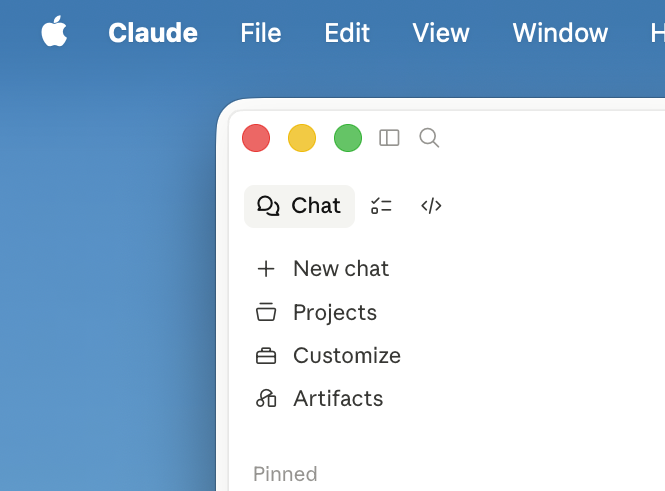
That's it. You're in Cowork.
Grant folder access
The first time you use Cowork, you'll need to tell it which folders it can access. This is how Cowork reads, edits, and creates files on your behalf.
Click the + button next to the chat input and select Add folder. Choose your Claude Workspace folder from the file picker. Cowork will ask for permission to access it — click Allow.
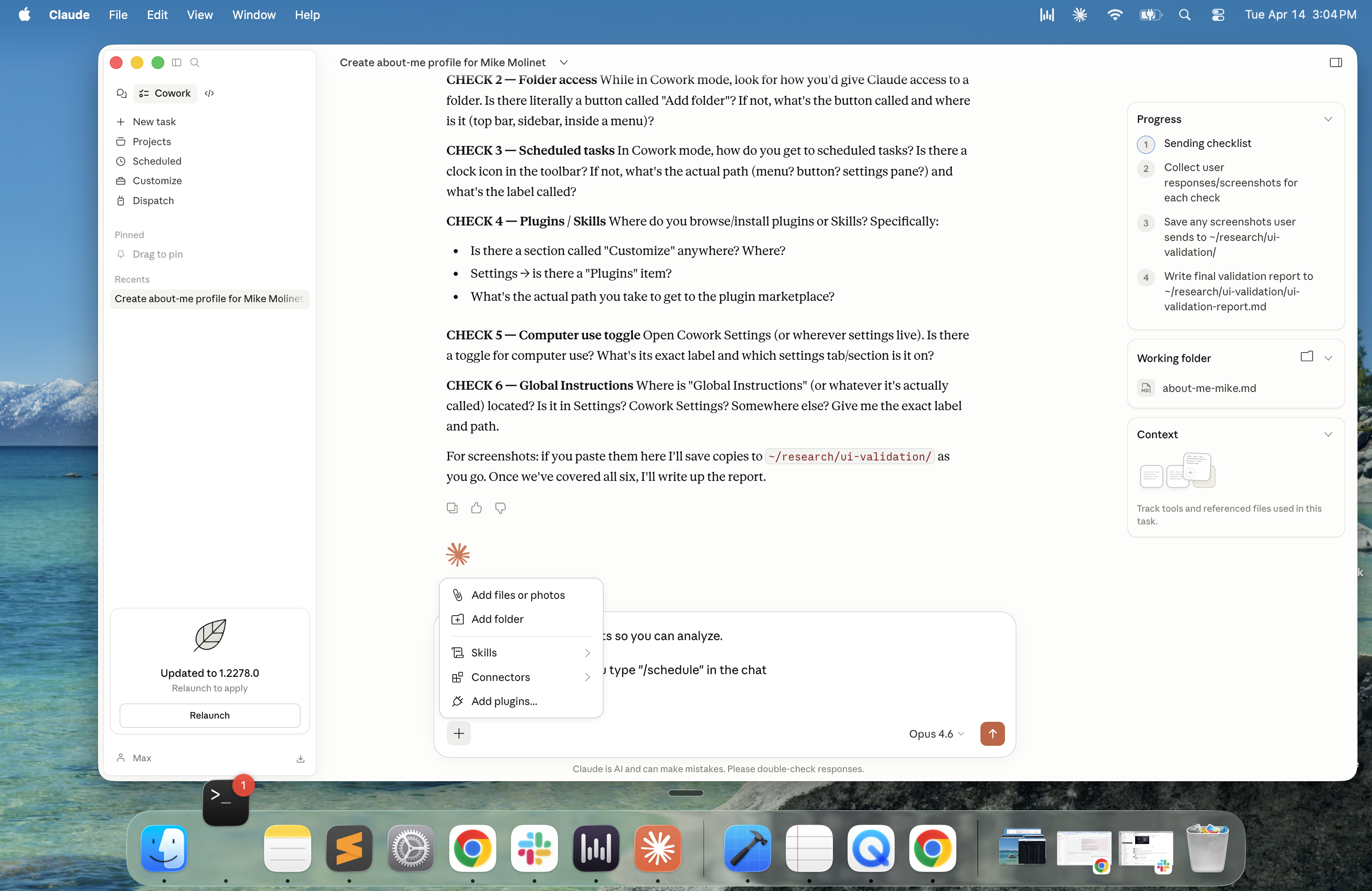
Alternatively, use the Work in a project dropdown below the chat input and select Choose a folder — this gets you to the same place.
A few things worth knowing about folder access:
- Cowork can only access folders you've explicitly granted. Nothing else on your computer is visible to it.
- You can add more folders later, or remove access to any folder, at any time in Settings.
- Start with just one folder. You can expand from there once you're comfortable with how Cowork works.
- Put your working files in this folder as you need them — don't grant access to your entire Documents folder on day one.
One important constraint
The Claude Desktop app must stay open while Cowork is working. If you close the app or your computer goes to sleep mid-task, the session will end. For short tasks this isn't an issue. For longer tasks — scheduled reports, multi-step research — you'll want to keep the app open and your computer awake until the work is done. We'll cover how to manage this when we get to scheduled tasks in Lesson 7.
Your first task
Before you start, make sure you have a few files in your Claude Workspace folder — any documents, notes, or PDFs you're currently working with. If you don't have anything handy, create a simple text file with some notes in it.
Then paste this into Cowork:
Look at the files in my Claude Workspace folder. Tell me what you find — file names, types, and a one-line description of what each one appears to be. Then suggest 3 tasks you could help me do with these files right now. Show me your plan before doing anything. Wait for my approval before taking any action.
Watch what happens. Cowork will read your folder, describe what it found, and propose next steps — all before touching anything. That's the plan-then-approve flow in action.
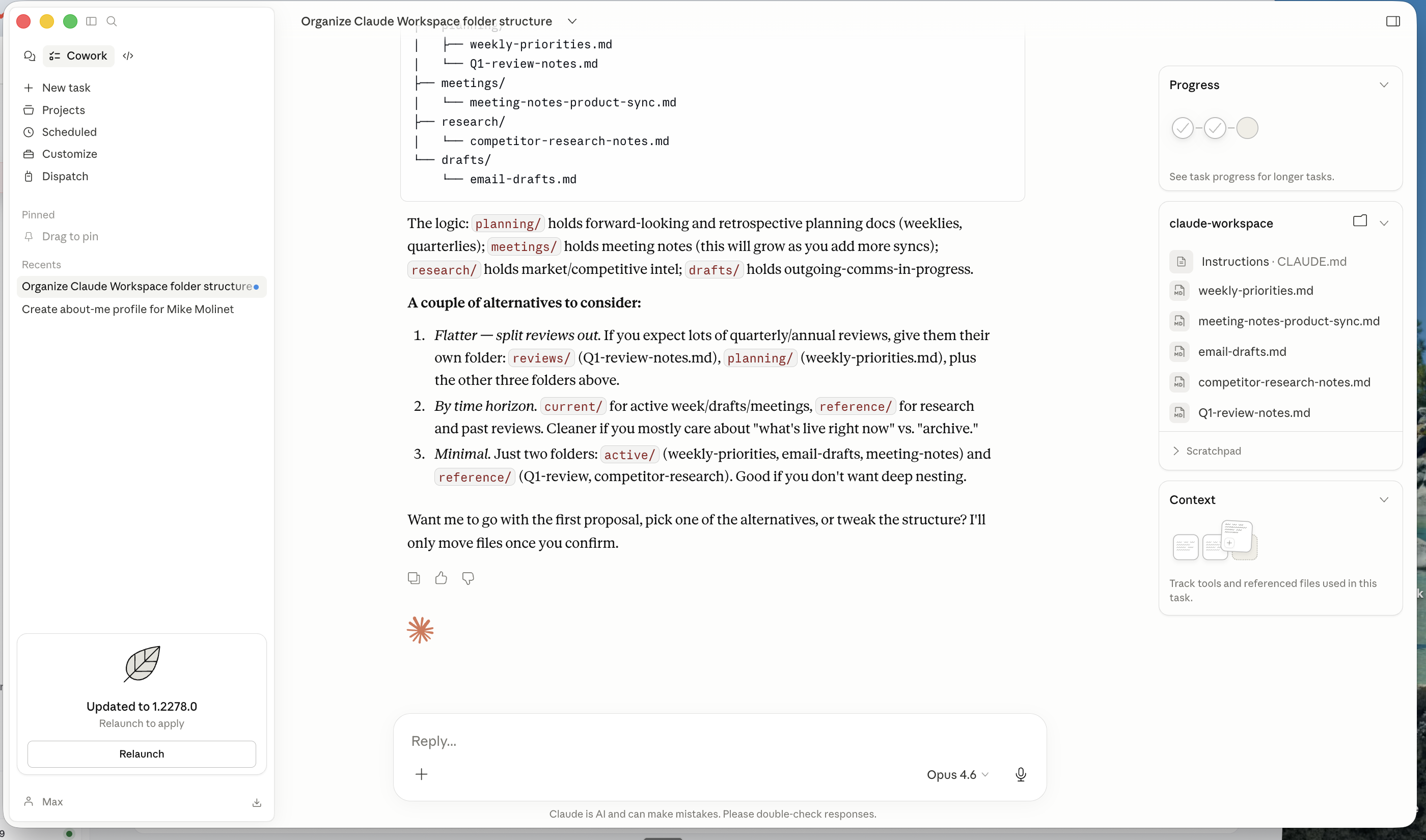
When you approve, it will execute. When it's done, you'll have your first real Cowork output.
What just happened under the hood
For tasks involving file operations and code execution, Cowork works inside an isolated virtual machine — a sandboxed environment on your computer. This is how Cowork executes file work safely, separate from your main desktop environment.
This is worth understanding because it's different from how computer use works — but we'll get to that distinction in Lesson 9.
You're set up. Now let's do something real.
The next lesson is about running your first meaningful Cowork workflow — not a demo, but something you'd actually want done. Three starter tasks, complete with the exact prompts to use.